Run an Encounter
From "I want a fight here" to running it at the table. Two blocks do the work: the encounter builder picks the monsters and tells you how hard it will be, then hands the roster to the initiative tracker, which runs it.
New to the plugin? Start with Getting started.
You need the compendium synced for this one — the builder reads the monsters' real stats from it (Settings → Draw Steel Elements → Compendium → Sync).
1. Build the fight
In Editing view, type /ds and pick Encounter builder. You get a worked example to
edit. Tell it about your party and list the monsters you're considering:
~~~ds-encounter
label: Ambush at the ford
party:
  hero_count: 4
  hero_level: 3
monsters:
  - code: scc.v1:mcdm.monsters.v1/monster.goblin.statblock/goblin-stinker
    count: 6
    squad: minion
  - code: scc.v1:mcdm.monsters.v1/monster.dragon.statblock/crucible-dragon
    count: 1
~~~
You don't have to type those codes by hand. Use Insert Draw Steel: compendium reference in the command palette to search for a creature, drop the block it writes anywhere, and copy the code out of it — or hold Ctrl/Cmd when you pick a search result to copy the code straight to your clipboard.
Switch to Reading view:
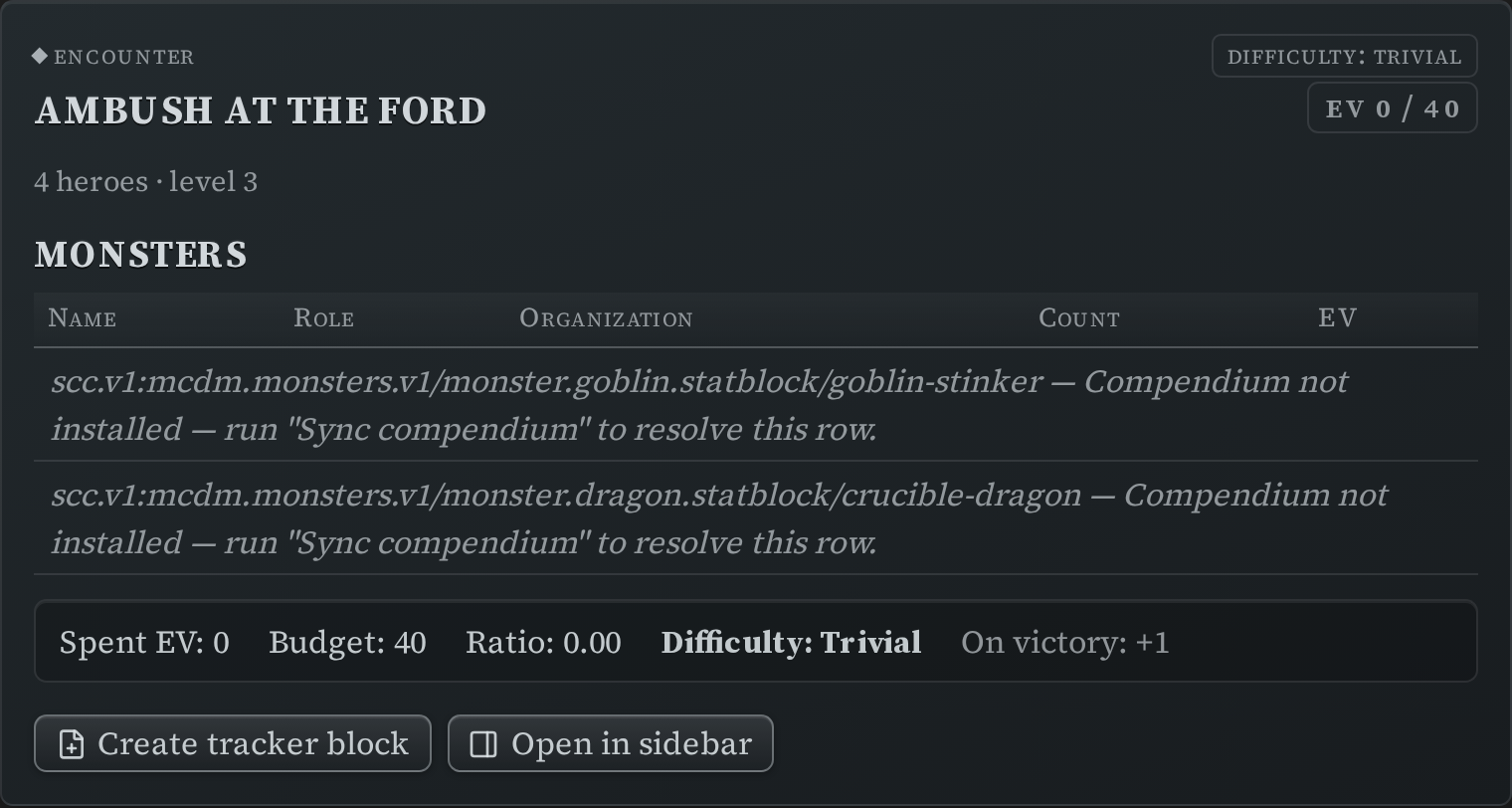
The summary line does the arithmetic for you: what the monsters cost in EV, what your party's
budget is, and the difficulty that lands on — trivial, easy, standard, hard or extreme —
plus how many Victories the party earns for winning. Change a count, look again. That is
the whole tuning loop.
A couple of honest limits: budgets are worked out for parties of 1–6 heroes at levels 1–10, and outside that range the builder shows the spent EV but no budget. A code it can't find is listed with the reason rather than quietly dropped.
2. Hand it to the tracker
When the roster is right, click Create tracker block. The builder writes a matching initiative tracker at the end of the note — monsters grouped, minions marked as squads, Stamina filled in from their real statblocks.
Click Open in sidebar instead and it does the same thing, then pins the new tracker to Obsidian's right sidebar so it stays on screen while you flip between notes.
3. Run it
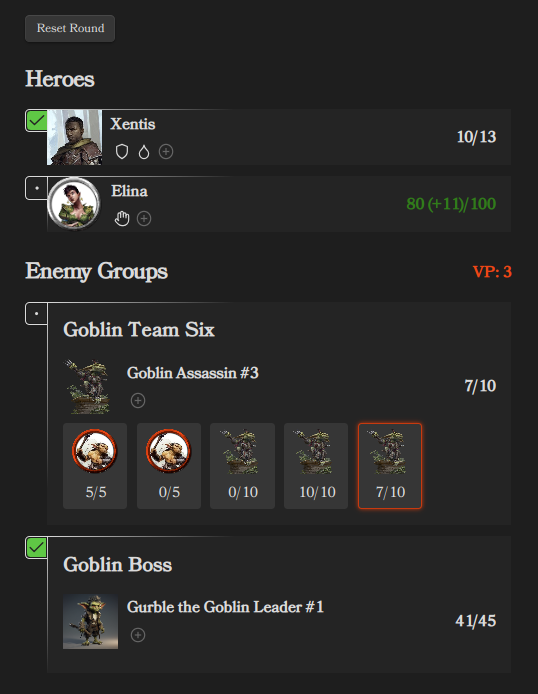
At the table:
- Turn markers — click the circle by a name when they've gone.
- The action checklist — each actor has [Main] [Maneuver] [Move] [Triggered] chips. Click them off as they're spent. "Triggered" clears per round, the rest per turn.
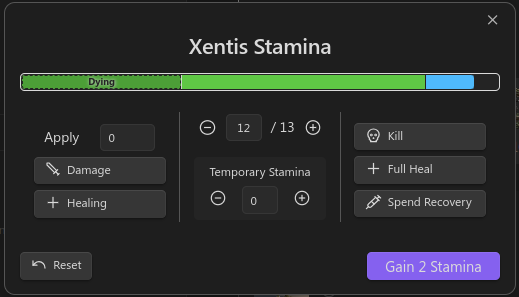
- Stamina — click any Stamina number for the damage/healing editor.
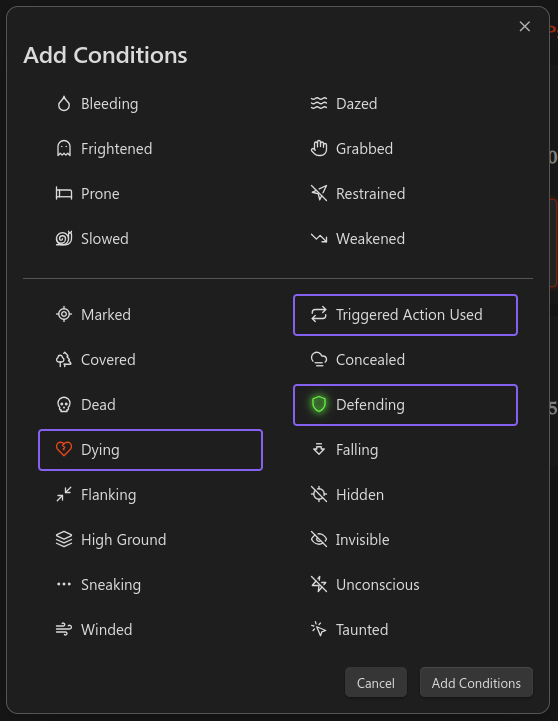
- Conditions — the
+in a row opens the picker. Click a condition to remove it.
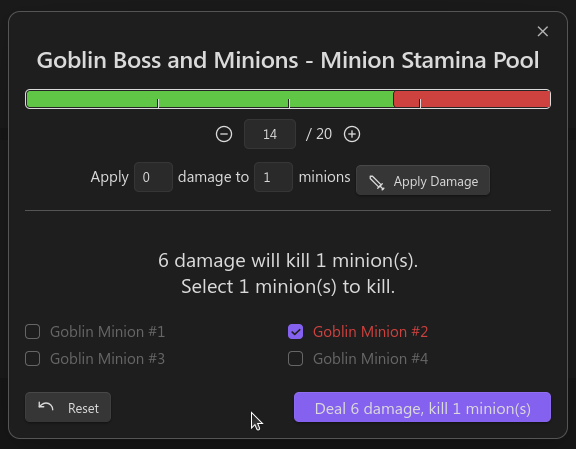
- Minion squads — a squad shares one Stamina pool. Click a minion to select it, then click the pool to open its editor, which walks you through which minions die.
- Malice — the panel tracks the pool, logs every gain and spend, and can add a set amount each round. Use "Quick-add" for a one-off ("3 — Feytouched").
Two buttons that are not the same
- Reset turns (this round) clears the turn markers and action chips without moving the round on. Use it when you mis-clicked.
- Advance round is the real round boundary: it clears those and bumps the round counter and grants the Malice you configured.
Keep it visible while you play
Running the session across several notes? Put your cursor in the tracker block and run Send block to sidebar from the command palette (or use the dedicated Send initiative tracker to sidebar). It moves to a panel on the right and stays there while you navigate.
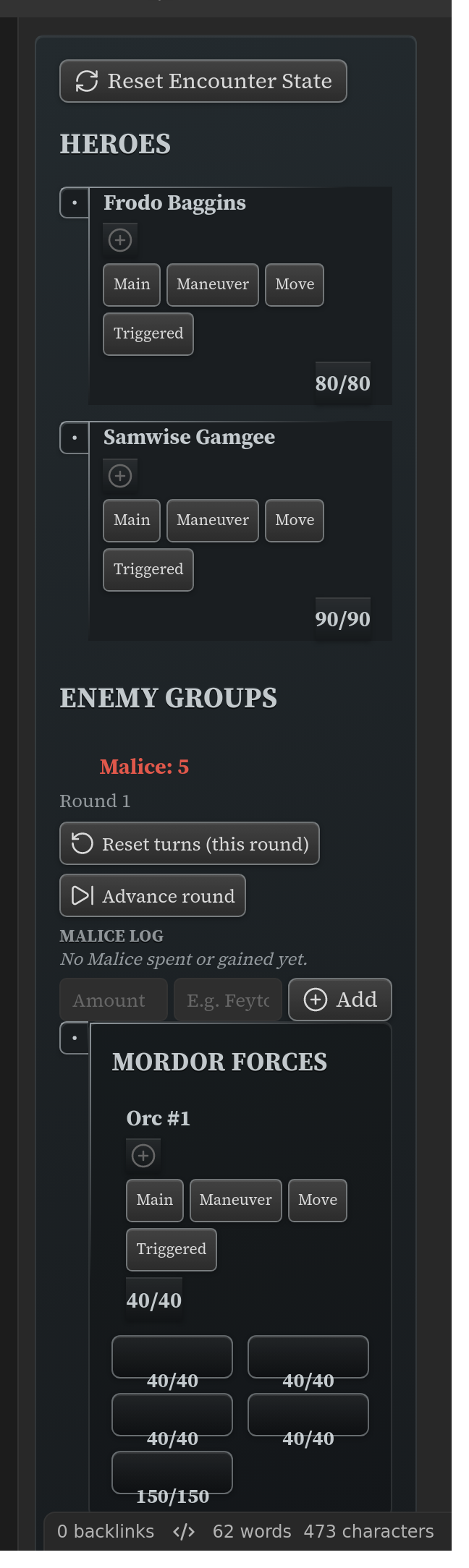
Everything you click is written back into the note as you go, in the sidebar as much as in the note, so the state survives closing Obsidian.
Afterwards
Award the Victories in your party tracker — it holds the whole party's victories, XP, renown, wealth and hero tokens in one table.
See also
- Initiative Tracker — every field and control
- Director's trackers — the encounter builder's fields, montages, downtime projects, the party tracker
- Negotiation tracker — for the fights that aren't fights