Writing and Editing Blocks
Every Draw Steel element is a fenced code block whose language is a ds- name, with YAML
inside it. You don't have to remember the names or the fields — the plugin can write the
block for you and complete the fields as you type.
Never done this before? Getting started walks the whole loop with screenshots; this page is the reference.
Insert a block
Type /ds
In the editor, type /ds on an empty line. A list of every element appears; keep
typing to filter it (/dsstat, /dshero, …). Pick one and the trigger is replaced with a
complete, filled-in example block you can edit.
Or use the command palette
Every element also has its own command: open the command palette and search for Insert Draw Steel: — for example Insert Draw Steel: Statblock, Insert Draw Steel: Initiative tracker, Insert Draw Steel: Hero sheet. The block is inserted at your cursor.
Both routes insert; neither ever overwrites text you already wrote.
Autocomplete inside a block
With your cursor inside a ds- block, start typing a field name and Obsidian suggests the
fields that element accepts. After a field that only allows certain values (for example
mode: in a roll block), the suggestions become that field's allowed values.
Field-name suggestions are offered for top-level fields; deeper, indented fields are not suggested yet.
Edit a rendered block with a form
Turn on Settings → Draw Steel Elements → Authoring → "Show edit button on rendered blocks" and every rendered block gains a small pencil. Clicking it opens a form with one control per field, a live preview of the card as you change it, and a Save button that stays disabled while the block is invalid. Saving writes the block back into your note through the same path the trackers use, so nothing else in the note is touched.
The setting is off by default; the insert commands and /ds work either way. The
hero sheet has its own Edit definition button in
its header instead, whatever this setting says.
Insert content from the compendium
Once you have synced the compendium there are two commands, and the difference between them matters.
Insert Draw Steel: compendium reference
Searches the compendium and inserts a small block that points at the entry:
```ds-scc
mcdm.heroes.v1/kit/panther
```
Nothing is copied into your note but the code, so the card always shows the currently synced version of that entry. This is what you want for official content you just need to look at. While the search list is open, hold Shift when you pick an entry to insert an inline link instead, or Ctrl/Cmd to copy just the code.
Insert Draw Steel: compendium block (snapshot)
Searches statblocks, features and featureblocks, and pastes the entry's full YAML into your note as an editable copy.
Why you'd want that: it's the starting point for homebrew. Drop in a goblin, change its Stamina, give it a new ability, rename it — and it's yours. A snapshot deliberately does not keep up with the compendium afterwards; your edits are the whole point, and a sync that overwrote them would defeat it. If you want content that keeps updating, use Insert compendium reference instead.
Snapshots are offered for statblocks, features and featureblocks only.
Pinning a block to the sidebar
Running a session across several notes? Put your cursor inside a block and run Send block to sidebar — the block moves into a persistent panel in Obsidian's right sidebar, stays interactive there, and stays in sync with the note. The initiative tracker has its own shortcut for this, Send initiative tracker to sidebar, which finds the tracker in the current note without needing your cursor inside it.
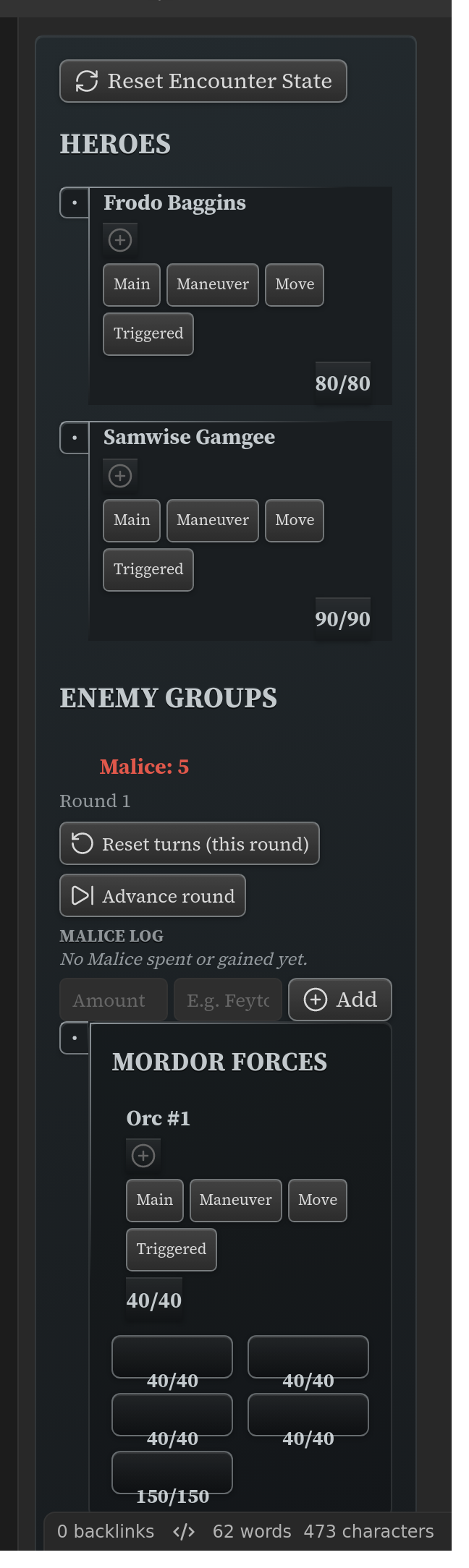
Open the panel any time with the crossed-swords ribbon icon, or the Open Draw Steel sidebar command.
Pinning a tracker adds a hidden _dse_anchor: line to it — that's the plugin's bookmark
for finding the block again after you edit the note around it. Leave it alone. A ds-scc
block, whose content is exactly one compendium code, is never written to: pinning one
leaves the note unchanged and the sidebar finds it by its code.
Per-block appearance overrides (advanced)
Most appearance settings are global (see Settings), but a single block can
pin its own look with a reserved prefs: key:
prefs:
  sbDensity: compact
  sbFeatureStyle: flat
The key is stripped before the block is parsed, so it never collides with the element's own fields, and it survives interaction with a tracker. Settings that change a card's structure rather than its styling — Characteristics, Boxed first letter, Villain actions — and the typography settings are global only: naming one here logs a warning to Obsidian's developer console and the block renders normally.