Settings
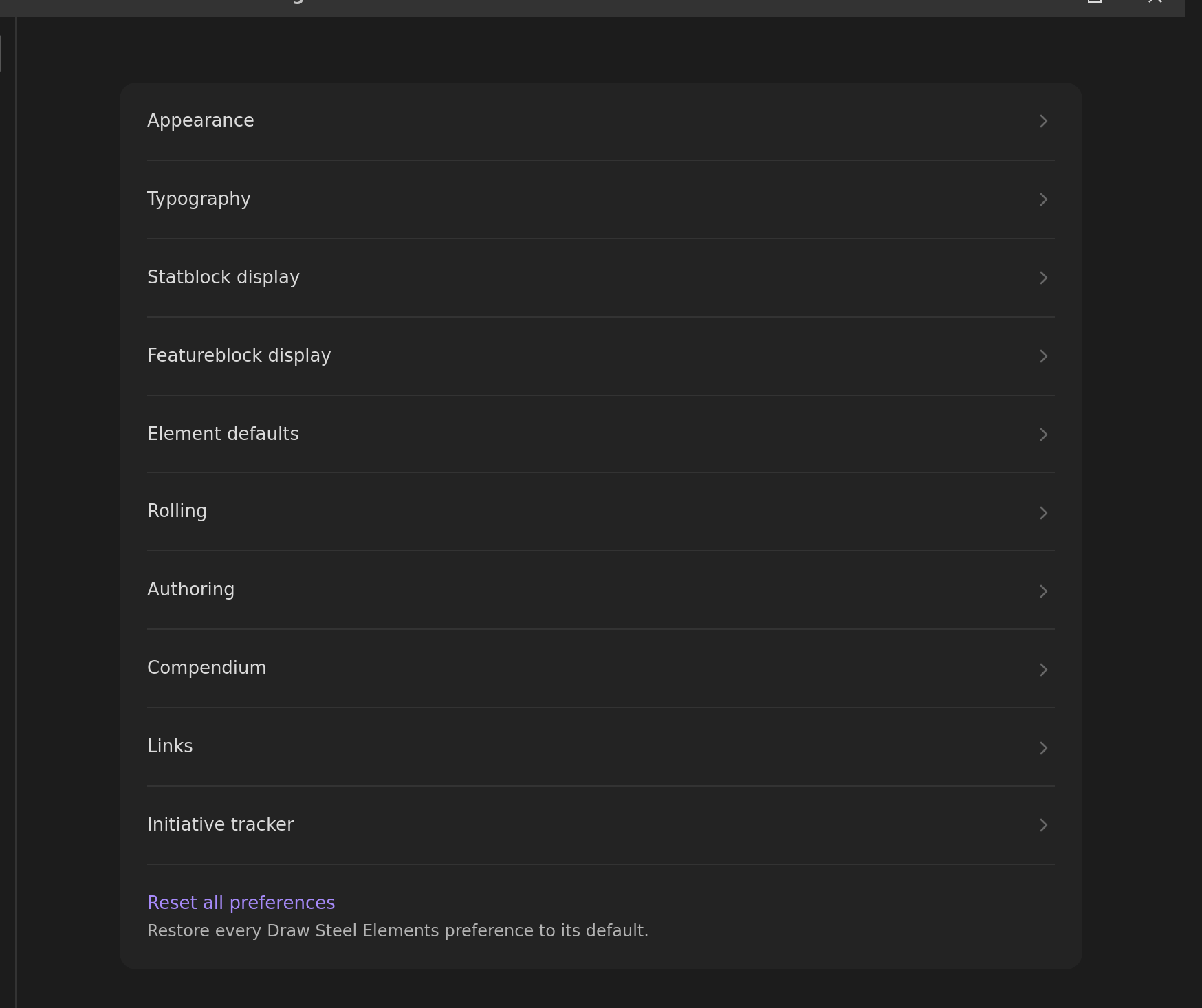
Open Settings → Draw Steel Elements. The plugin's settings are a short index of pages; click a page to see only its own settings.
You can also just search: Obsidian's own settings search (the box at the top of the settings window) indexes every Draw Steel Elements setting, so typing "font", "density" or "malice" finds the right row from anywhere and jumps straight to it.
Three pages — Appearance, Typography and Statblock display — show a live preview docked at the bottom while you scroll, so you can see what a setting does before you leave the page. Each page also has a Reset action that puts that page's settings back to their defaults.
Every setting ships on the value that reproduces what the plugin renders out of the box. Nothing changes unless you change it.
Choosing a statblock look, with pictures: Style your statblocks.
Appearance
- Reduce motion — turn off transitions and animations inside Draw Steel elements. Your system's own reduced-motion preference is always honoured regardless of this setting.
- Print preview — show every element in its print/export layout on screen, so you can check a handout without printing it.
- Initiative portraits — show creature portraits in the initiative tracker.
Typography
- Title font, Body font, Controls font — pick from a curated list, or type any font installed on your machine. "Default (Obsidian vault fonts)" keeps your vault's own text font.
- Text size (60%–140%) and Card size (80%–120%) — scale the text inside elements, or whole statblock and ability cards. Print and export always use 100%.
- Under Advanced: Card body font, Label font and Monospace font for the smaller text slots.
Font and size settings apply everywhere, including print and export, and are global — they can't be overridden per block.
Statblock display
How statblocks are laid out. Start with the Preset:
- Steel card — the plugin's own look, and the default.
- Sourcebook — the book-style flat layout.
- Index card — compact, for reference at the table.
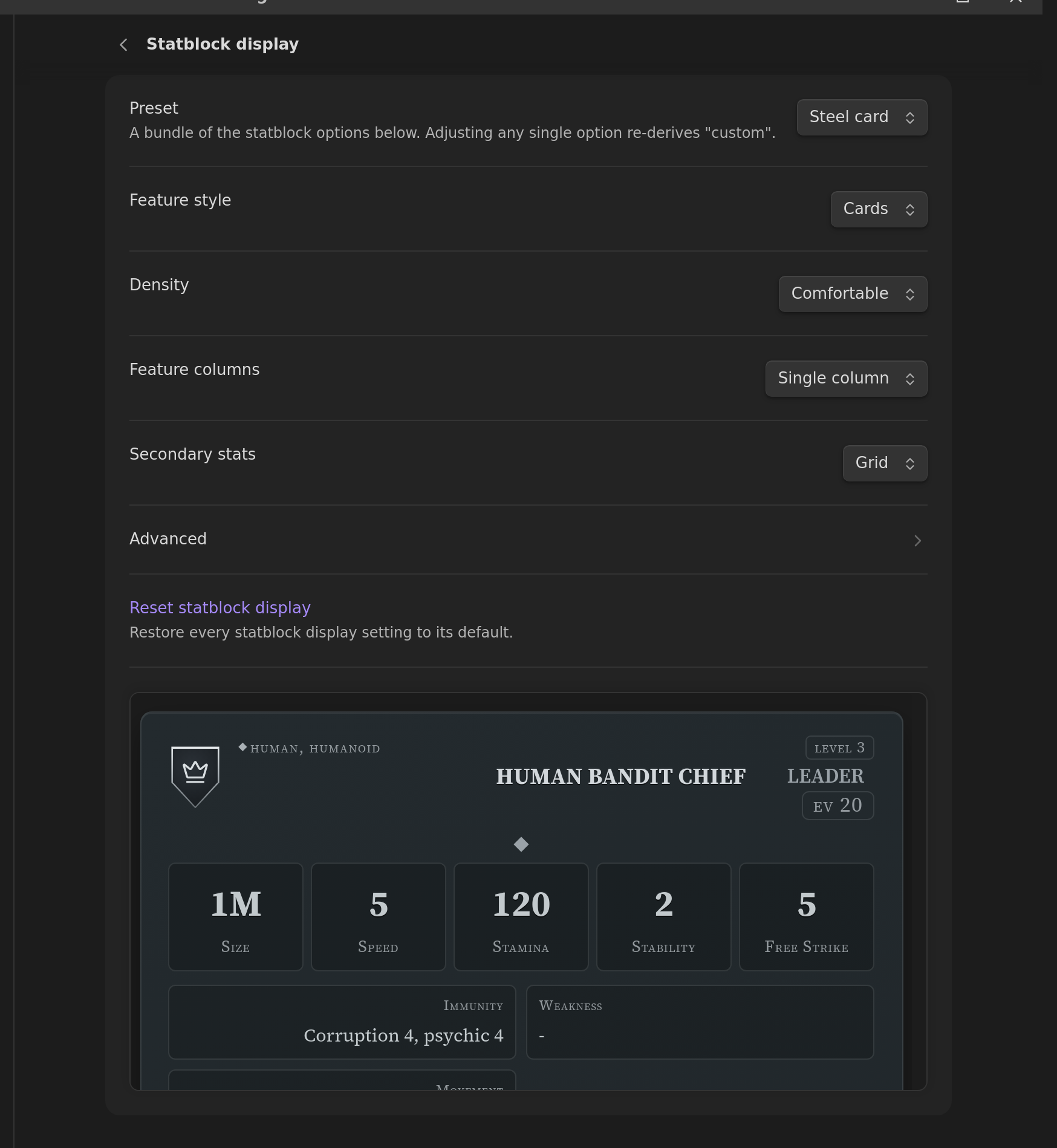
A preset writes all nine settings below it. Change any one of them afterwards and the preset box reads Custom — nothing is lost, it's just no longer one of the three named bundles.
The individual settings:
- Feature style — abilities and traits as Cards or as a Flat list.
- Density — Comfortable or Compact spacing.
- Feature columns — Single column or Side-by-side (wide).
- Secondary stats — the Immunity / Weakness / Movement / With Captain block as a Grid, a Grid (centered), or a hairline Ledger.
Under Advanced:
- Keyword display — the keyword and action-type band as Chips, Inline text, a Grid, or a Ledger. Applies to every ability card.
- Distance + target — the same three treatments for the distance/target rail.
- Characteristics — the familiar One line ("Might +2"), or the value stacked over the word.
- Boxed first letter — a small framed M / A / R / I / P beside each characteristic, with or without the spelled-out word.
- Villain actions — listed among the other features, or collected into one collapsible Villain Actions band below them (always open in print and export).
Featureblock display
The same idea for featureblocks; the preview on this page shows a featureblock rather than a statblock.
- Feature style — cards or a flat list.
- Stat line — the Stamina / Size / EV header as paired cells or as full-width rows with the value right-aligned.
Element defaults
- Collapsible by default — blocks can be collapsed unless the block itself sets
collapsible:. See common element fields. - Start collapsed — collapsible blocks start closed unless the block sets
collapse_default:. - Under Advanced: Edit Recoveries with a popover — clicking a Recovery marker opens a small − / + popover instead of setting the count immediately. See Stamina Bar.
Rolling
- Enable rolling (off by default) — adds a dice roller to rendered ability cards. The standalone Roll element always rolls, whatever this says.
- Roller — roll natively, or hand the raw dice to the community Dice Roller plugin when it's installed. Draw Steel's tier/edge/bane maths always stays native, and the plugin falls back to its own roller automatically if Dice Roller is missing or fails.
- Click ability to roll — with rolling enabled, clicking a power-roll tier row on an ability card rolls it.
Authoring
- Show edit button on rendered blocks (off by default) — adds a pencil to each rendered block that opens a form editor. See Writing and editing blocks.
Compendium
Destination folder, release and locale for Compendium Sync, plus the Sync and Check for updates buttons and a line showing which release you have, how many files it installed, and when.
Links
- Fall back to steelcompendium.io links — when an
scc.v1:link doesn't resolve to a file in your vault, link to its page on steelcompendium.io instead. Nothing is fetched; you just get a working link when you click it.
Initiative tracker
- Default creature image path — the image used for creatures in the initiative tracker that don't specify their own.
Overriding a setting for one block
Appearance settings are global, but a single block can pin its own layout with a reserved
prefs: key — see
per-block appearance overrides.